Robotics Lab App: Explore 8 Boards in 3D
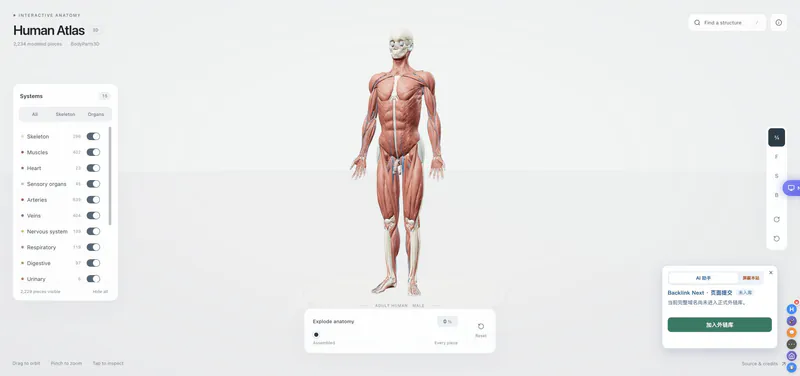
Robotics Lab app lets you explore eight development boards in 3D, inspect their parts, and practice wiring virtual circuits. Open the robotics lab app on Vercel in your browser.















Explore the Robotics Lab App
- Category
- Tools
- Platform
- Web browser
- Mode
- Interactive 3D robotics learning tool
- Developer
- Movez (@0xMovez)
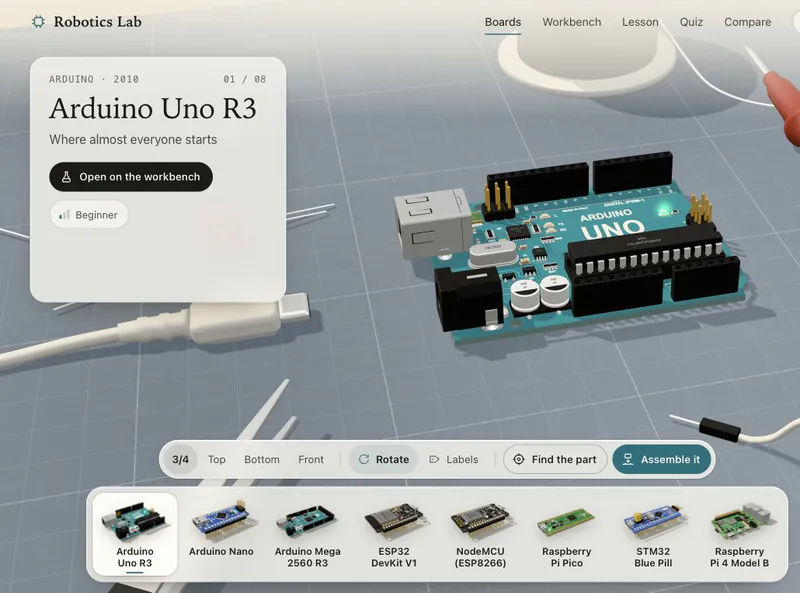
Robotics Lab is an interactive 3D learning space for eight development boards. Open a model to inspect its components, find a named part in the quiz, or assemble components on the board. The gallery below shows the eight available board models.
The workbench adds a hands-on circuit activity: connect pins, run a check, and follow guided LED, sensor, or motor missions. On the Raspberry Pi 4 Model B, the GPIO uses 3.3 V logic, so do not feed 5 V into an input pin.
Explore the Board Models
Browse 3D previews of all eight boards and open any model to inspect its parts.
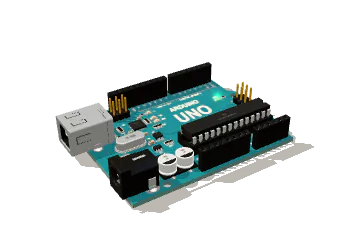
Arduino Uno R3
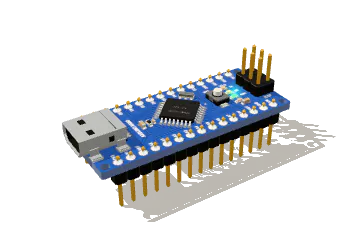
Arduino Nano
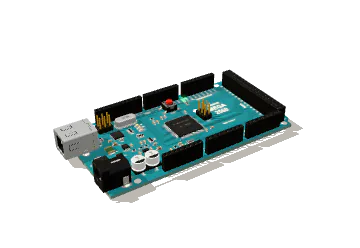
Arduino Mega 2560 R3
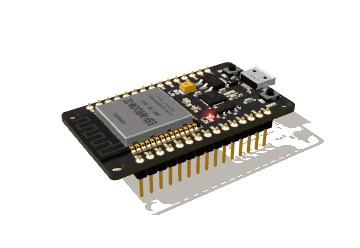
ESP32 DevKit V1
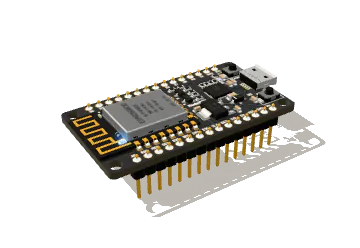
NodeMCU (ESP8266)
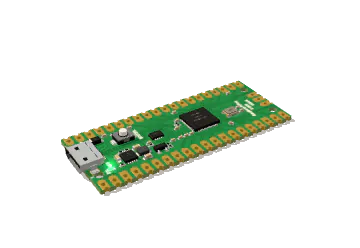
Raspberry Pi Pico
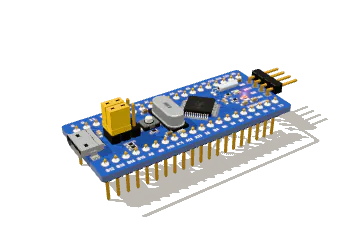
STM32 Blue Pill
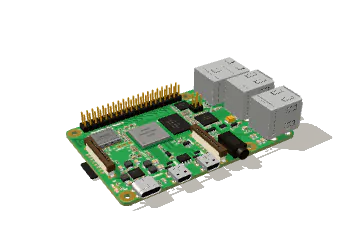
Raspberry Pi 4 Model B
How to Use the Robotics Lab App
Controls
Click Play Now above to load the Robotics Lab app, then choose one of the eight boards. Switch views, rotate, or zoom to inspect the model and its labeled components. Choose Find the part for a quiz, or Assemble it to place components on their matching footprints and solder them.
On the workbench, add a sensor, motor, or display, then connect pins one at a time and press Run to check the circuit. Guided missions cover a blinking LED, reading a sensor, and driving a motor; Free build lets you wire your own setup.
Game Features
- Eight named development boards, from Arduino Uno R3 to Raspberry Pi 4 Model B
- Top, Bottom, and Front views, plus rotation, zoom, and component labels
- A part-finding quiz with optional hints and skips
- Assembly mode where you pick a component from the tray, place it on the matching footprint, and solder it
- A circuit workbench with guided LED, sensor, and motor missions
Robotics Lab App Questions
Who created Robotics Lab?
Movez (@0xMovez) created Robotics Lab. It brings eight development boards into one interactive 3D explorer. You can explore it at https://robotics-lab-app.vercel.app/.
Which boards can I explore in Robotics Lab?
The app includes Arduino Uno R3, Arduino Nano, Arduino Mega 2560 R3, ESP32 DevKit V1, NodeMCU (ESP8266), Raspberry Pi Pico, STM32 Blue Pill, and Raspberry Pi 4 Model B.
How does the part-finding quiz score answers?
Find the named component on the 3D model. You can take a hint or skip, but only a first-try answer without a hint counts toward the score.
How do I connect parts on the workbench?
Add a sensor, motor, or display, select one pin and then another to connect them, and press Run for the circuit check. Guided missions cover an LED, a sensor, and a motor.
What do I do in the assembly activity?
Choose a component from the tray, place it on the matching footprint, and solder it. The Arduino Uno example includes 15 labeled parts.
What should I know before wiring the Raspberry Pi 4?
The Raspberry Pi 4 GPIO uses 3.3 V logic. Do not feed 5 V into an input pin when wiring the board.